
2) iOS Mail Icloud Desktop & Mobile
1st Step: Activate iCloud.
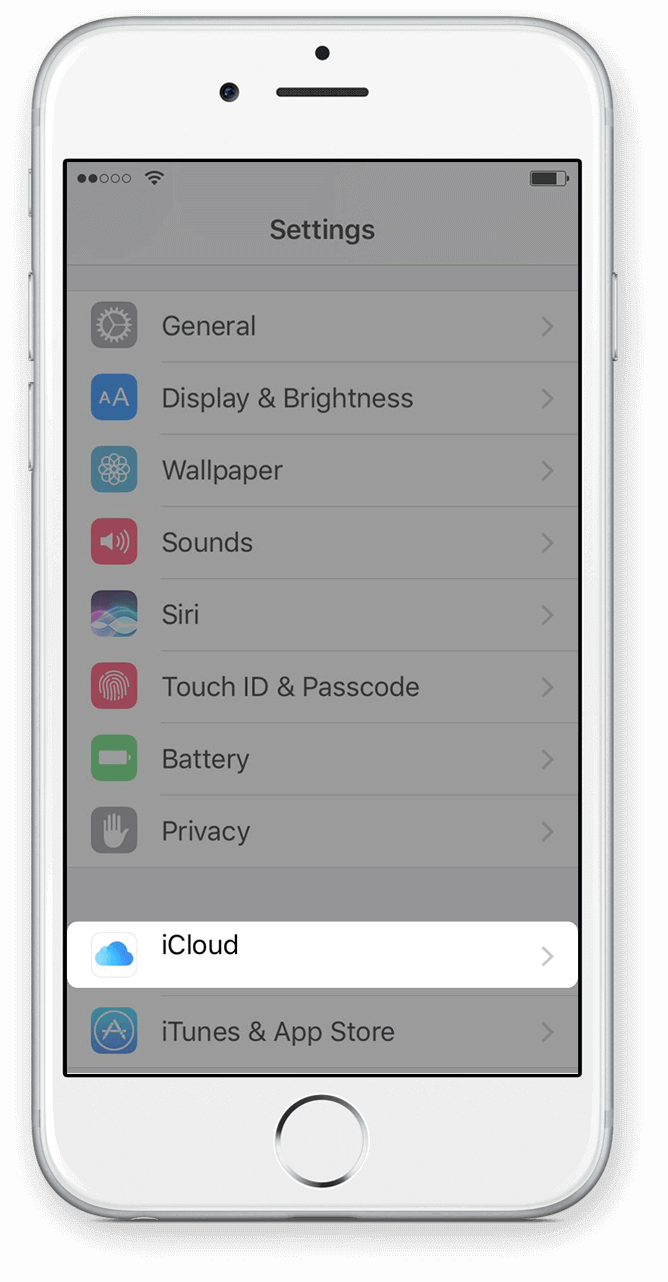
Go to the Settings of your iPhone and click on iCloud.
Step 1
Go to the Settings of your iPhone and click on iCloud.
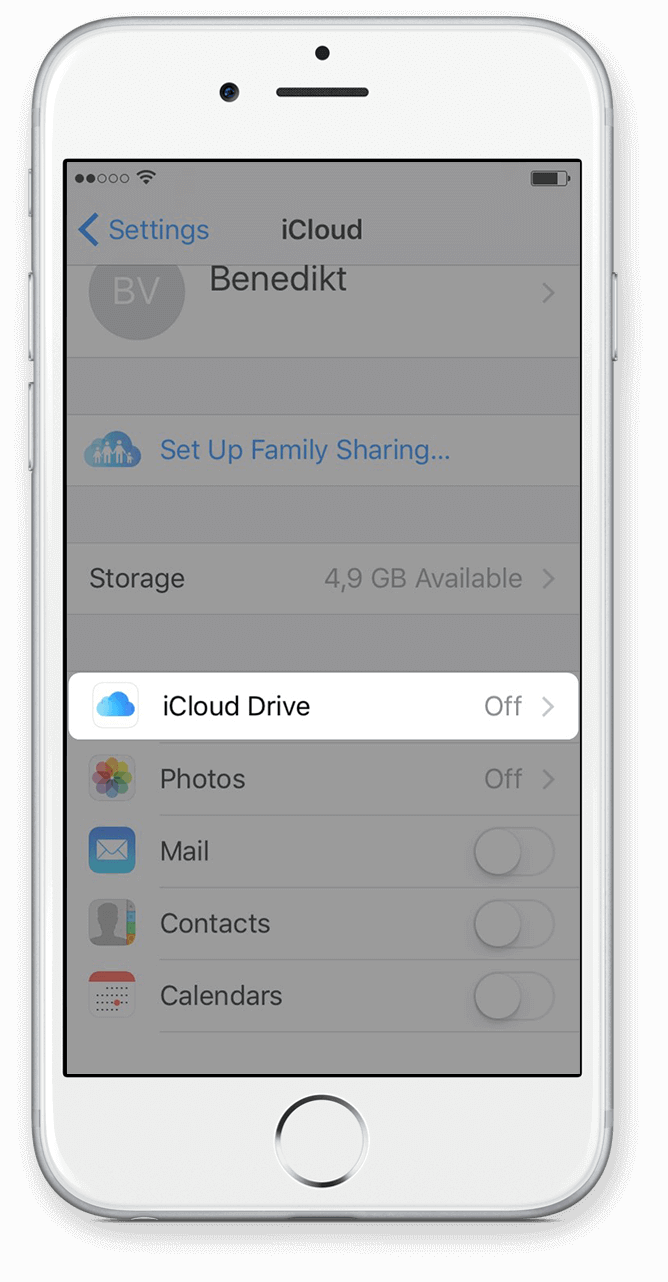
Click on iCloud Drive.
Step 2
Click on iCloud Drive.
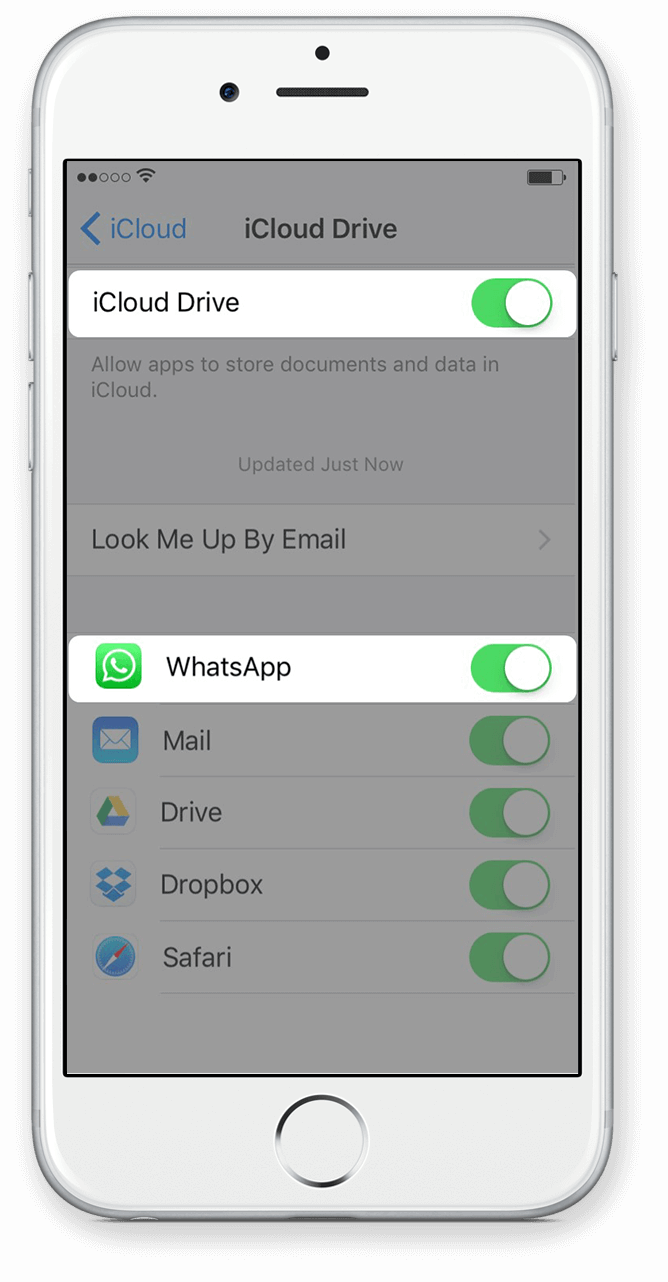
Activate iCloud Drive and check that WhatsApp is active too.
Step 3
Activate iCloud Drive and check that WhatsApp is active too.
3) iOS Mail Mobile
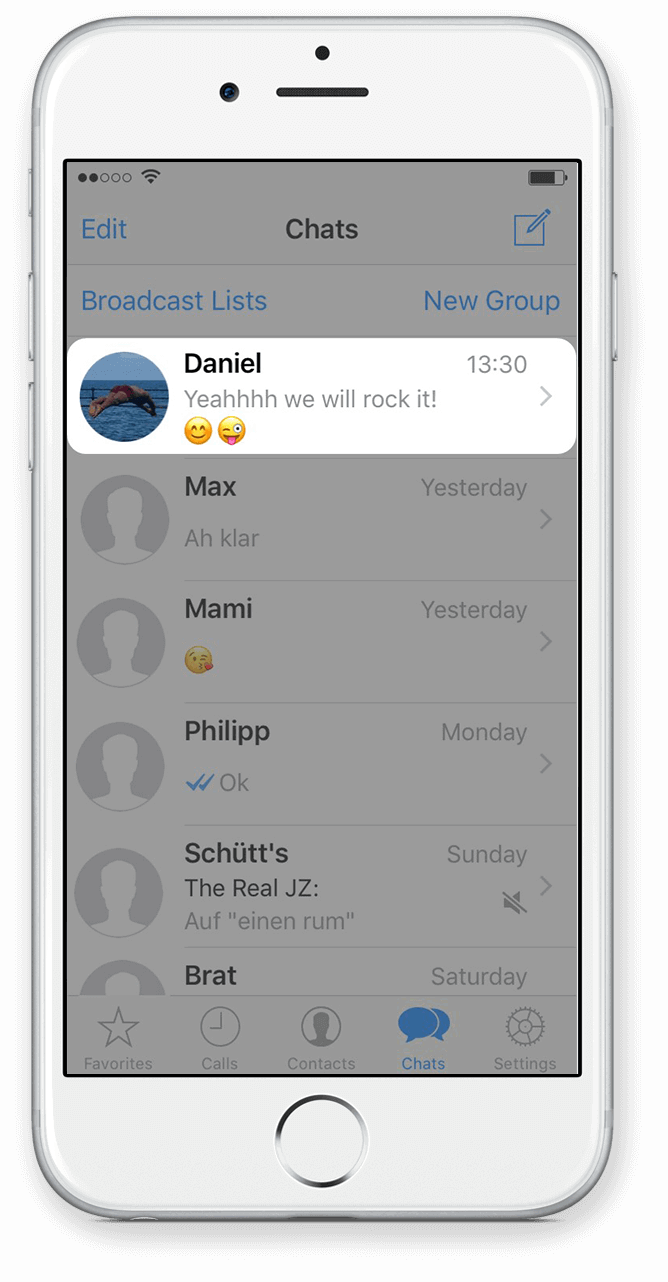
Step 1
Go to the chat you want to make a book of.
Step 2
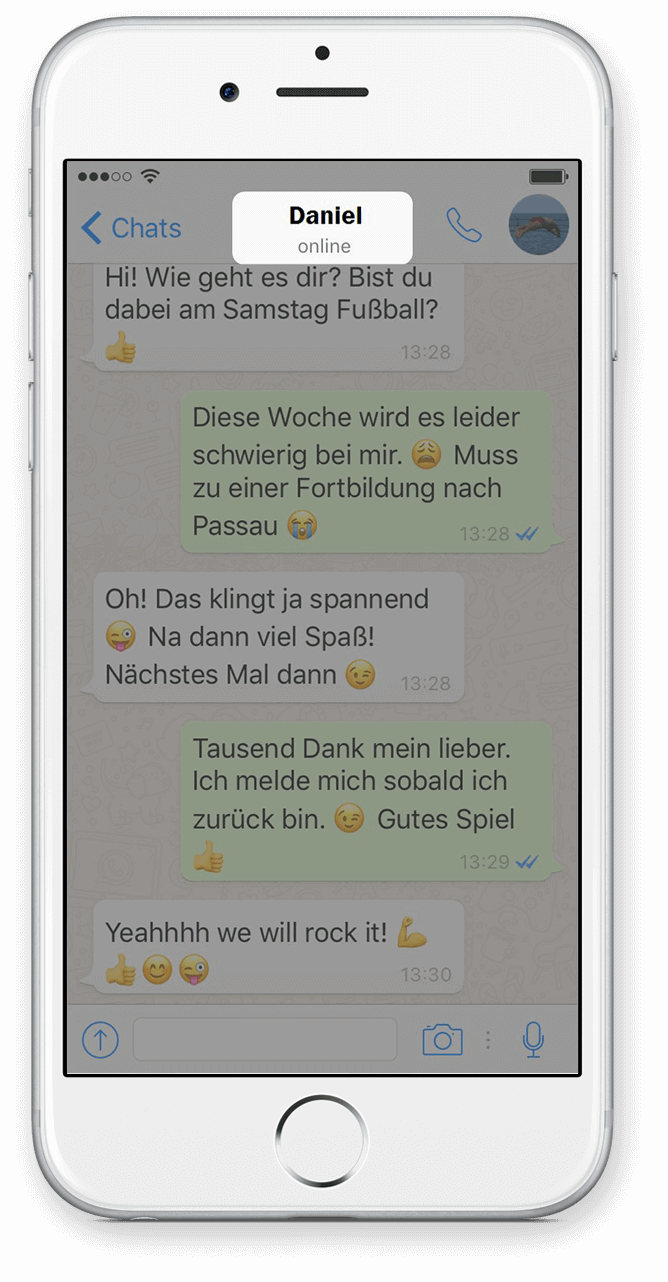
Click on the name of the chat, which is located above the messages of the chat.
Step 3
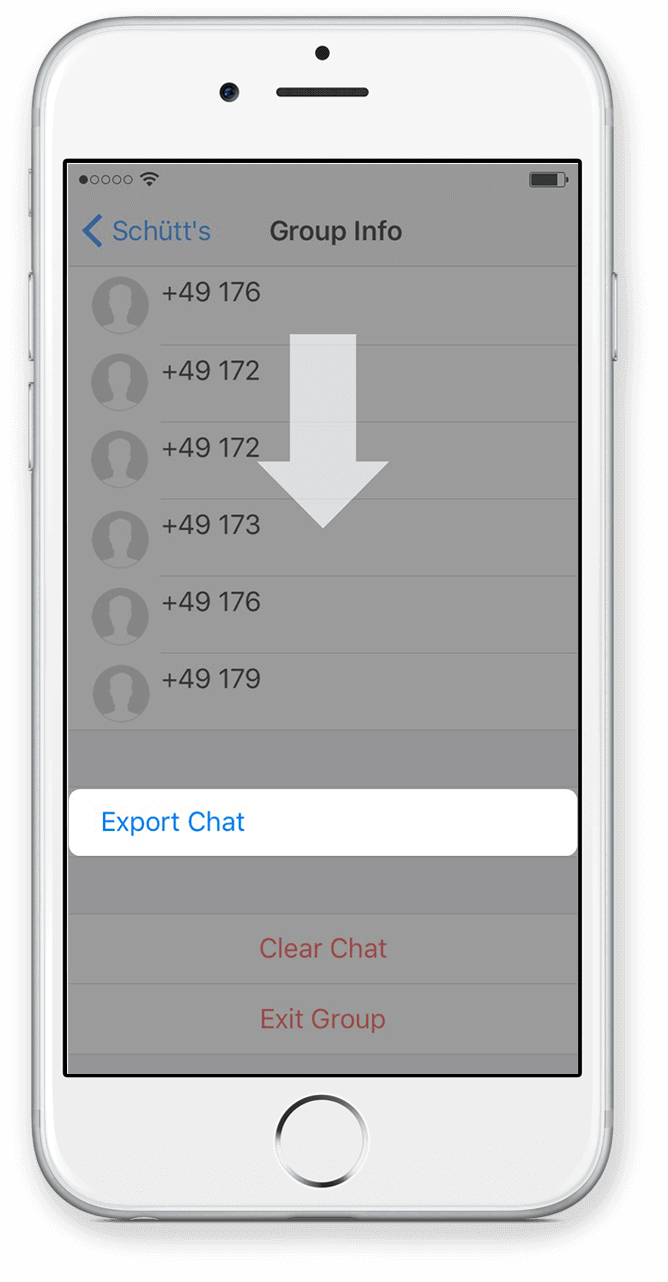
Scroll down and select Export Chat.
Step 4
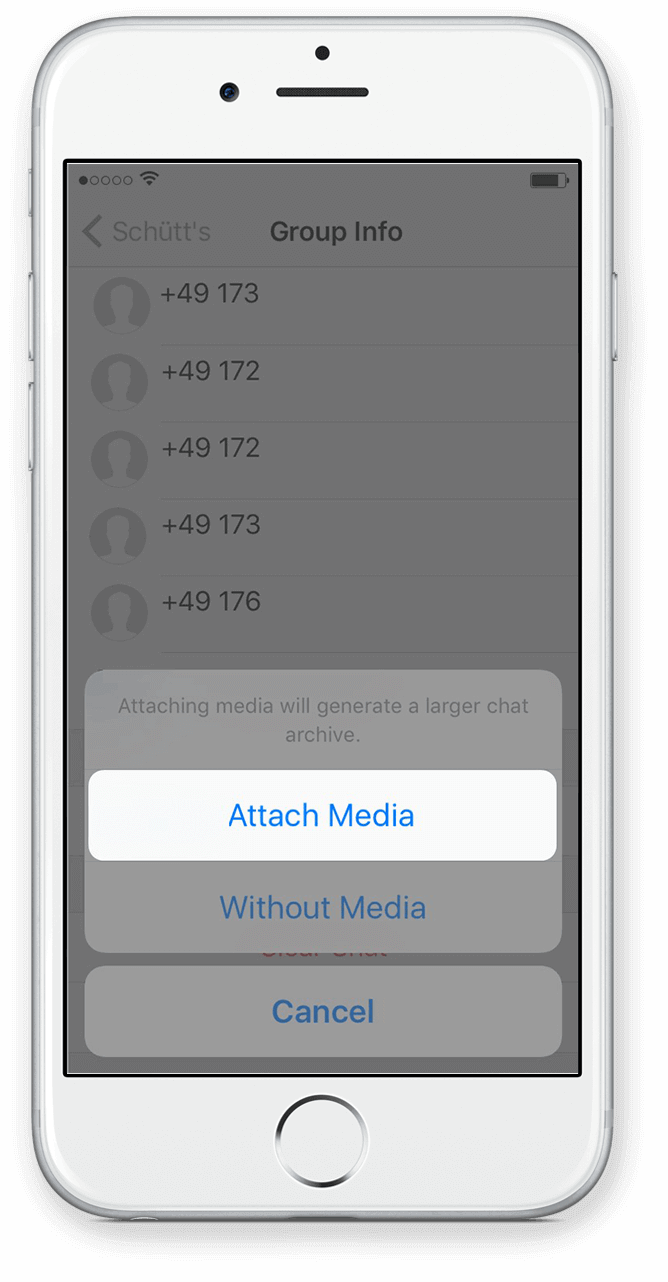
Select Attach Media if you want to export the images as well.
Step 5
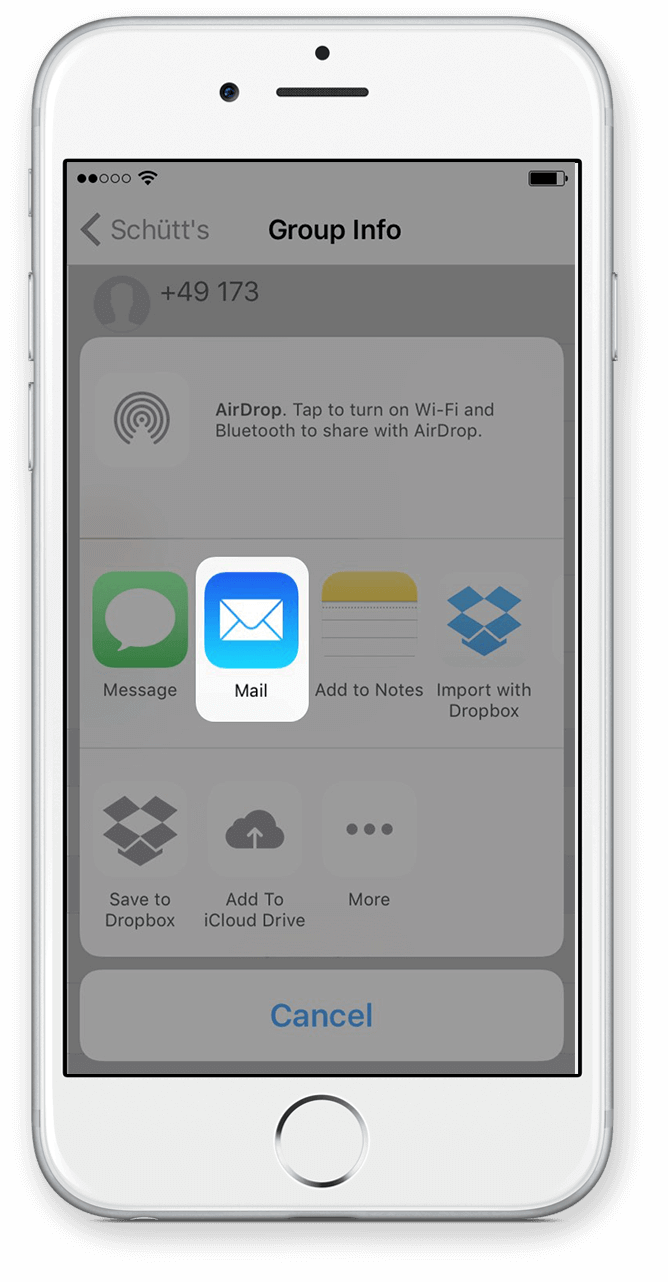
Select the iPhone Mail app. Do NOT select any other app (such as Gmail or Dropbox).

Step 6
Type your email address as the recipient. Write a subject and click on Send.
Step 7
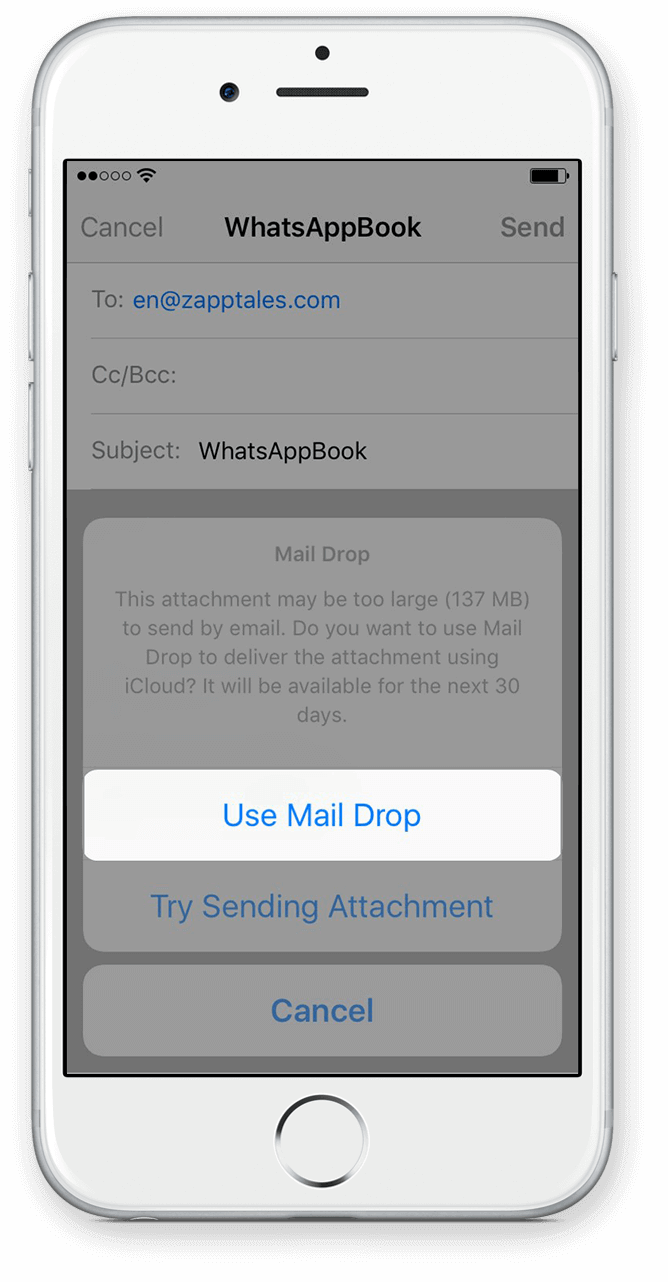
If the attachment is very large, you will see the following notification. Select Use Mail Drop. Your chat is on the way!
4) Export IOS step 1
Open the chat you want to make a book of.
5) Export IOS step 2
Export Your WhatsApp Chat from iOS
Step 2
Click on the name of the chat, which is located above the messages of the chat.
2. Generate the Export
Click on the name of the chat, which is located above the messages of the chat.
6) Export IOS step 3
Export Your WhatsApp Chat from iOS
Step 3
Scroll down and select Export Chat.
3. Export the chat
Scroll down and select Export Chat.
7) Export IOS step 4
Export Your WhatsApp Chat from iOS
Step 4
Select Attach Media if you want to export the images as well.
4. Attach Media
Select Attach Media if you want to export the images as well.
8) Export IOS step 5
Export Your WhatsApp Chat from iOS
Step 5
Select the iPhone Mail app. Do NOT select any other app (such as Gmail or Dropbox).
5. Select Mail App
Select the iPhone Mail app to export your chat. Do NOT select any other app (such as Gmail or Dropbox).
9) Export IOS step 6
Type your email address as the recipient. Write a subject and click on Send.
10) Export IOS step 7
Export Your WhatsApp Chat from iOS
Step 7
If the attachment is very large, you will see the following notification. Select Use Mail Drop. Your chat is on the way!
7. Select MailDrop
If the attachment is very large, you will see the following notification. Select Use Mail Drop. Your chat is on the way!

